- CIS18 compliance report.
- Basic and Advanced modes for Group Policies’ streamlined management.
- “Add App C Allow/ Block rule” commands in the “Pending Approvals” view.
- Device Revocation Management via the Heimdal API.
- Uninstall software command added to Device Info Details views.
- Bulk selection of Claim Types.
- Configurable BFA Allowlist duration.
Heimdal Dashboard
● Basic and Advanced modes for Group Policies’ streamlined management
As part of our ongoing effort to deliver a consistent and intuitive administration experience across the Heimdal Dashboard, we have redesigned the configuration experience for Endpoint Settings and Network Settings through the introduction of the new Basic and Advanced configuration model.
The new Basic and Advanced configuration model reorganizes existing settings into a more structured and user-friendly layout, making it easier to navigate, understand and manage policies while preserving the full functionality and flexibility of the platform.
This enhancement is available across all supported operating systems, including Windows, macOS and Linux (Ubuntu), further reinforcing Heimdal's cross-platform approach and ensuring a consistent configuration experience regardless of endpoint type or operating environment.
The new Basic and Advanced buttons (toggle) provide two dedicated configuration views:
- Basic – presents the core configuration options required for the most common administration tasks, offering a simplified and streamlined interface.
- Advanced – exposes the complete set of available configuration options for administrators who require greater control and more granular configuration capabilities.
Administrators can switch between the two views at any time, depending on the level of configuration required.
The Basic view brings the most frequently used settings to the forefront, enabling administrators to quickly configure and manage their environments, while the Advanced view continues to provide access to the full range of available configuration settings.
The Basic view brings the most frequently used settings to the forefront, enabling administrators to quickly configure and manage their environments, while the Advanced view continues to provide access to the full range of available configuration options.
The selected view preference is remembered at user level and automatically applied when navigating configuration pages and creating new Group Policies, ensuring a consistent administration experience.
At the same time, related configuration options have been grouped in a more logical and consistent manner, improving discoverability and simplifying navigation across configuration pages.
The result is a cleaner and more streamlined user experience that reduces visual complexity without sacrificing flexibility, making common administrative tasks easier while preserving access to all existing functionality and advanced configuration options.
The screenshots below illustrate how the same Group Policy and product configuration are presented in the Basic and Advanced views.
While both modes manage the same underlying configuration, the interface dynamically adapts to display either the most commonly used settings or the full set of available options, providing a streamlined administration experience without impacting functionality.
3rd Party Patch Management Basic
3rd Party Patch Management Advanced
This enhancement forms part of our continued focus on improving the overall administration experience across the Heimdal platform. Future releases will further refine the user experience through clearer feature/ setting denominations, improved interface wording and enhanced informational tooltips, making configuration options easier to understand and manage while maintaining the platform's flexibility and depth.
Note: This is a UI-focused enhancement that improves the organization and presentation of settings. Existing functionality and behavior remain unchanged.
● Device Revocation Management via the Heimdal API
A new endpoint Device Revoke/ Unrevoke has been added to the Heimdal API, allowing dashboard users to revoke and unrevoke machines. The endpoint supports both operations through a single request and allows multiple machines to be processed simultaneously.
The endpoint documentation has been added to the Heimdal Dashboard -> Guide -> Your Heimdal API Key -> API tab and the Heimdal API Postman Collection has been updated with a ready-to-use request.
The freshly added endpoint provides the following capabilities:
- Revoke or unrevoke one or multiple machines in a single request by providing the corresponding clientInfoIds;
- Process up to 100 clientInfoIds per request;
- Use the same endpoint for both revoke and unrevoke operations.
Note: Requests containing more than 100 clientInfoIds return an error.
The request requires the following parameters:
- customerID (required parameter) – identifies the customer;
- clientInfoIds (required parameter) – specifies one or multiple machines to be processed. Multiple values can be provided as an array, for example: [12345, 67890, 24680] ;
- revoke (optional parameter) – controls the requested operation. If omitted, the value defaults to false (Unrevoke).
The revoke parameter accepts the following values:
- true → revokes the specified machines.
- false → unrevokes the specified machines.
Depending on the outcome of the request, the endpoint returns one of the following results:
-
Success – all requested machines were successfully revoked or unrevoked.
-
PartialSuccess – some machines were successfully processed, while others could not be updated.
-
Failure – none of the requested machines could be processed.
Note: a machine may fail to be processed if:
- the provided clientInfoId is invalid;
- the machine is already in the requested state (already revoked or already unrevoked). If a request contains a combination of successful and failed operations, the endpoint returns PartialSuccess.
● Brand new CIS18 compliance report
As part of Heimdal's strategic focus on helping organizations address compliance, governance and cyber resilience requirements, we are introducing the new CIS18 report, available on demand within the Reports & Alerts section of the Heimdal Dashboard.
The report provides visibility into how a Heimdal deployment aligns with the Center for Internet Security (CIS) Controls v8.1 framework by mapping licensed Heimdal capabilities against relevant Controls and Safeguards, while clearly identifying coverage areas, configuration gaps and opportunities for further capability adoption.
Designed to support security reviews, internal audits, compliance assessments and security posture improvement initiatives, this report further expands Heimdal's compliance reporting capabilities and reinforces our ongoing commitment to helping customers demonstrate and strengthen their cybersecurity maturity.
CIS18 Reports can be generated on demand from the Reports & Alerts -> Standard view, under the On demand reports tab, by clicking the “Generate on demand report” button.
Clicking the Generate on demand report button opens the Generate report window where customers can choose the type of report they wish to generate - in our case, the CIS18 Report.
After selecting the CIS18 Report type, clicking the Next step button takes the customer to the report configuration window.
The report is configured through the standard Heimdal report configuration dialog, ensuring a familiar and consistent experience across the platform. The following settings can be configured:
- time zone;
- date format - this setting allows configuration of the preferred date format: dd.MM.yyyy, dd/MM/yyyy, MM/dd/yyyy, yyyy/MM/dd;
- language - this setting determines the language in which the report is generated;
- Custom Logo - this setting allows customers to use the Heimdal Logo and, if available, a custom co-branding logo.
Clicking “Confirm” generates the report and automatically delivers it to the dashboard user's mailbox, while a green toast notification confirms successful submission. Generated reports are also available in the On-Demand Reports view, where they can be downloaded as PDF files directly from the Status column.
Note: The CIS18 report is available on-demand only and does not support scheduling. Results reflect the previous calendar month and are generated based on the customer's licensing, module deployment, configuration and available data.
Our latest report helps organizations strengthen compliance, governance and cybersecurity maturity initiatives by providing a comprehensive overview of how Heimdal capabilities align with the CIS Controls v8.1 framework.
Through detailed control-level and safeguard-level reporting, organizations can better support internal audits and compliance assessments, understand current coverage, identify configuration opportunities, uncover potential capability gaps and continuously improve their overall security posture.
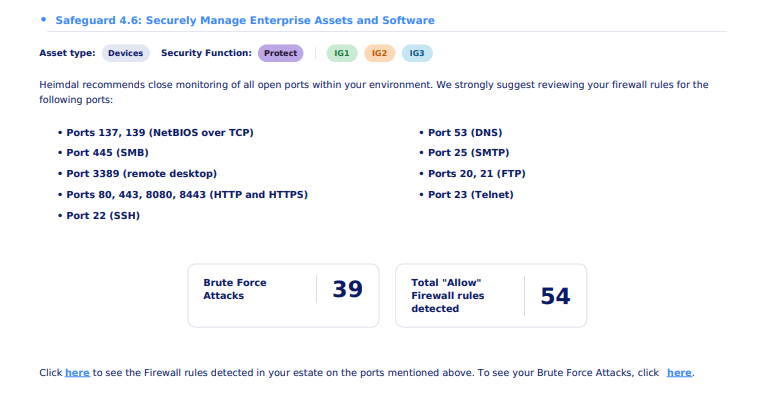
The screenshots below provide a preview of the report's design, structure, and key information sections.
Heimdal Patch & Asset Management
● 3rd Party Patch Management – Uninstall software command added to Device Info Details views
To further improve software lifecycle management capabilities, a new Uninstall 3rd Party Software action is now available within the Device Info Details views (accessible after clicking a hostname) for Patch & Asset Management -> 3rd Party Patch Management.
Administrators can initiate software uninstall operations directly from the associated status grids, with built-in confirmation prompts and full command traceability through Server Commands.
This enhancement extends an existing capability already available in the Device Info Standard View and 3rd Party Patch Management dashboard views, bringing the same functionality closer to the relevant software status information.
The “Uninstall 3rd Party Software” option is now available through the “Select what action to take dropdown” across the Current Status, Latest Patch, Currently Outdated, Historically Outdated and Up-to-date views within Device Info Details (accessible after clicking a hostname) for 3rd Party Patch Management. The dropdown becomes visible when at least one record (software entry) is selected in the grid.
After selecting one or multiple software entries from the grid and applying the “Uninstall 3rd Party Software” action, dashboard users are presented with a confirmation pop-up window, summarizing the selected application(s), version(s) and associated endpoint(s).
This additional validation step helps ensure software removal operations are executed against the intended targets.
Note: As with the existing uninstall functionality, the action applies only to applications supported by Heimdal (part of the standard software catalog).
As with the existing functionality, all software uninstall actions are logged and visible within the Unified Management -> Device Info -> Server Commands view (and, where licensed, through the Server Commands tab in TAC Actions Center) where the Heimdal Dashboard users can monitor progress in real time. Running software uninstall commands also include a Cancel option, allowing execution to be stopped before completion.
This enhancement improves operational efficiency by making software uninstall actions available directly within the relevant software status views, reducing the steps required to perform common administrative tasks. It also supports Heimdal’s continued focus on delivering a more unified, intuitive and consistent user experience across the platform while maintaining full visibility, traceability and control over executed actions.
Heimdal Privileges & App. Control
● PEDM – Introduction of “Add App C Allow/ Block rule” commands in the “Pending Approvals” view
With this enhanced PEDM and Application Control integration, Heimdal further strengthens its unified platform approach to cybersecurity management.
Since its inception, Heimdal has pursued a strategic direction centered on unifying security capabilities and reducing friction between operational workflows, allowing its users to leverage functionality where it is most relevant rather than navigating between isolated products and interfaces.
Building on this principle, IT admins can now create Application Control Allow and Block rules directly from the PEDM Pending Approvals grids, both in the main dashboard and within client/ endpoint-specific views (post clicking a hostname).
For customers licensed for Application Control, users with the appropriate PEDM permissions (to take actions on PEDM grids) can now create Allow and Block rules directly from the Pending Approvals grids.
When file-based elevation requests are selected, administrators can immediately convert those requests into Application Control rules, streamlining the transition from approval workflows to long-term application governance.
When one or more file elevation requests are selected and the corresponding “Add App C Allow rule” or “Add App C Block rule” action is applied, the existing Application Control rule creation workflow is launched directly from the PEDM Pending Approvals view.
Depending on the selected action type (Allow or Block) and whether a single or multiple file elevation requests are selected, the appropriate Application Control configuration modal is displayed, leveraging the same rule creation experience already familiar to Application Control administrators.
Note: Example of App C Allow rule creation modal with fields automatically populated from the selected file elevation request.
Note: Example App C Block rule creation modal window displayed when multiple file elevation requests are selected from the PEDM Pending Approvals view.
The Add App C Allow rule and Add App C Block rule actions are displayed only when the selection contains at least one file elevation request. Selections consisting exclusively of session elevation requests do not expose these actions.
To improve clarity within the Pending Approvals workflow, the existing Approve and Deny actions have been renamed to PEDM Approve and PEDM Deny. This distinction helps differentiation between elevation request handling and Application Control policy creation actions.
Other improvements & fixes:
● Accounts -> Access Control tab – Bulk selection of Claim Types
To simplify account configuration and reduce the effort required when managing larger sets of claim types, a new Select All option has been introduced within the Accounts -> click account name/ email -> Access Control tab.
Available directly from the Claim Types column header, this enhancement enables administrators to quickly select or deselect all available claim types with a single action, eliminating the need for individual manual selections.
● Firewall & TAC Devices Action Center: Configurable BFA Allowlist duration
To provide IT admins with greater flexibility while strengthening security and promoting more controlled exception management, the Brute Force Attacks, Add to Allowlist workflow has been enhanced with support for configurable allowlist durations.
Available from the Endpoint Detection -> Firewall -> Brute Force Attacks view through the “Select what action to take dropdown”, as well as from Threat-hunting & Action Center for Devices, Aggregated Notifications and Notifications (Raw View) through the “Add to Firewall Allowlist” action, Heimdal Dashboard users can now specify how long an allowlist entry should remain active directly from the confirmation modal displayed after applying the action.
Administrators can choose to allowlist entries for 7, 30, or 90 days, enabling temporary exceptions to be managed more effectively while reducing the risks associated with permanently allowlisted items.