In this article, you will learn everything you need to know about the Firewall product.
1. Description
2. How does Firewall work?
3. HEIMDAL Agent - Firewall
4. Firewall view
5. Firewall Management settings
DESCRIPTION
The Firewall product allows you to control the Windows Firewall from the Heimdal Management Portal.
HOW DOES FIREWALL WORK?
The Firewall product controls the Windows Firewall with Advanced Security and enables you to manage firewall rules from the HEIMDAL Dashboard (through the Heimdal.Firewall.Exe process). It also intercepts any Brute Force attack attempts and automatically blocks the RDP Port to stop the attack. The Firewall module allows you to isolate a computer in case of suspicious activity. The detection of Brute Force Attacks is based on Event ID 4625, which can be found in the Event Viewer -> Windows Logs -> Security -> Audit Logs (Logon category).
HEIMDAL AGENT - FIREWALL
Firewall (inside the HEIMDAL Agent) displays the Firewall Rules that are set by the HEIMDAL Administrator in the Group Policy settings.
In the Firewall Alerts section, you can see the alerts that were triggered on a computer with information on Local IP, Attempts, Detection Type, and Date.
FIREWALL view
The Endpoint Detection - Firewall view displays all the information collected by HEIMDAL Agent that is running on the endpoints in your organization. The collected information refers to the Windows Firewall rules and alerts intercepted by the HEIMDAL Agent. At the top, you see a statistic regarding the number of Infected Files, the number of Suspicious Files, and the number of Quarantined Files.
The collected information is placed in the following views: Firewall Rules and Firewall Alerts.
-
Firewall Rules
This view displays a table with the following details: Hostname, Username, Application, Port, Profile type, Protocol, Direction, Permission, and Timestamp.
The entries that you see in this view include all the new rules that Windows automatically creates in the Windows Firewall (this event is logged in the Event Viewer Logs, under Microsoft -> Windows -> Windows Firewall with Advanced Security -> Firewall -> event ID 2004, 2071, and 2097). When a new application has a new rule in the Windows Firewall with Advanced Security, the HEIMDAL Agent sends it to the HEIMDAL Dashboard to be displayed in the Firewall view -> Firewall Rules (if there is no other rule that is matched in the Group Policy under Firewall). The rules created in the Firewall Management settings will not be displayed in the Firewall Rules view. These custom rules will be displayed ONLY in the specific Group Policy, under the Firewall Management sub-tab where they are created. -
Brute Force Attacks
This view displays a table with the following details: Hostname, Username, Local IP, Most targeted username, Main source IP, Main source Country, Detection type, Timestamp, and Risk Level.
The checkbox allows you to select an entry and add the IP Address to the Brute Force Attack Allowlist. The entries that you see in this view include a list of all the unwanted connections that are interpreted as Brute Force Attacks.
A Brute Force Attack is triggered when a user fails to insert the correct password (event 4625) at least 100 times in less than 5 minutes. The detection types are classified as BruteForceAttackPrivate (these attacks are originating from an IP Address on the same network as the affected endpoint/server - 192.x.x.x, 172.x.x.x, 10.x.x.x), BruteForceAttackPublic (these attacks are originating from an IP Address that is coming from outside the network/public IP Address).
Brute Force Attacks alerts are triggered when the local user fails several password attempts:- Low Risk - under 150 failed attempts;
- Medium Risk - between 150 and 200 failed attempts;
- High Risk - over 200 failed attempts.
An external user will trigger a High Risk of Brute Force Attack when a minimum of 100 failed attempts are performed in less than 5 minutes. The failed password attempts are found in the Event Viewer Logs, under Windows Logs -> Security -> Event ID 4625. During a Brute Force Attack, the Heimdal.Firewall.exe process might use a higher CPU usage (depending on the interval of the Brute Force Attack attempts) of 1% to 60%.
The BFA by Country view presents data grouped by country, allowing users to analyze attack patterns based on geographic location:
In the detailed view, clicking on the device number (attempts registered to that specific country) displays all alerts originating from that location. Upon selecting entries from the detailed view (after clicking on a country) you can also add to the Allowlist from here.
The BFA by IP view presents data grouped by IP, providing insight into attack sources.
In the detailed view, clicking on the number of devices displays all alerts originating from that IP address. Upon selecting entries from the view, you can also add to the Allowlist from here.
The BFA by User view showcases data grouped by user, helping track targeted accounts. Clicking on the number of devices displays all alerts associated with that user account, along with the relevant information.
FIREWALL MANAGEMENT settings
This module allows you to control the Windows Firewall from the HEIMDAL Dashboard.
Firewall Management - turn ON/OFF the management of the Windows Firewall. Turning the Firewall Management ON will enable the Windows Firewall on the endpoints if it is disabled, but turning it OFF will not disable the Windows Firewall on the endpoints.
General Settings
Enforce manual added rules when computer is isolated - keep the manually added firewall rules in the Group Policy even when the computer is isolated (this makes sure that rules added in the Group Policy are not disabled by the HEIMDAL Agent when the computer gets isolated);
Allow ICMP Echo Requests - creates a rule that allows PING requests inside your network.
Auto-collect logs on isolation - If enabled, the Heimdal Thor Agent will automatically send logs on isolation
Use automatic rules - allows you to select any of the profiles to enable/disable the Inbound/Outbound connections.
Firewall Profiles
Firewall Rules
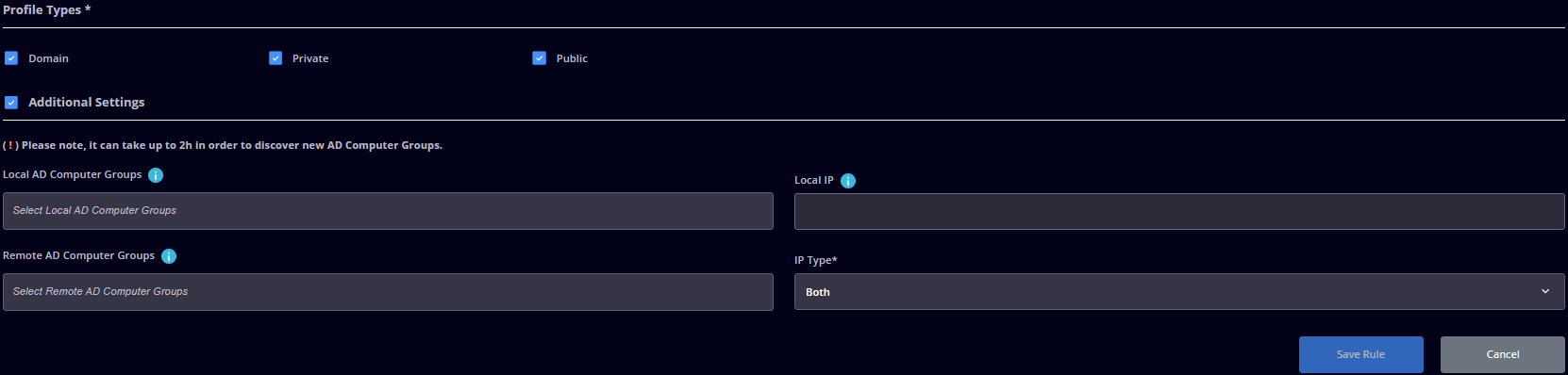
This option allows you to add/edit/remove Firewall rules in the Windows Defender Firewall. To create a Firewall Rule, you need to follow the required conditions:
- Name - allows you to set the rule name (the name of the rule needs to be unique). Each rule will include a suffix (corresponding to the protocol type) in the rule name (e.g., Block SQL Server port-TCP or Block SQL Server Port-UDP);
- Application - specify the application path or * for any application;
- Remote IP - specify an IP Address or * for any IP Address;
- Port - specify the port value or * for any Port (values can be set only for TCP or UDP protocols);
- Direction - specify the direction of the flow (In, Out, Both directions);
- Protocol - specify the protocol type (TCP, UDP, or Any);
- Permission - specify whether to block or allow;
- Profile Types - specify on what profile the rule applies (Domain, Private, Public).
- Local AD Computer Groups - allows you to apply the rule to the computer(s) that are part of the specified Local Active Directory Computer groups;
- Remote AD Computer Groups - allows you to apply the rule to any remote IP Address belonging to computers that are part of the specified AD Computer Groups (this setting will take into consideration the selected IP type: public/private/both);
- Local IP - allows you to apply the rule to a computer that uses the specified IP Address(es). Multiple IP Addresses can be specified, separating them by a comma.
- IP Type - allows you to select between Public, Private, or Both.
 Firewall Predefined Rules
This option allows you to enable/disable predefined rules based on a list of groups. These firewall groups are mapped in order to provide network connectivity for Windows programs and services and the user cannot alter them.
Isolation Rules
This option allows you to isolate an endpoint in your network from the rest of the endpoints. If the endpoint is isolated, all its external connections are rerouted through the Heimdal Security systems. Once the option is enabled, the endpoint can be isolated from the Device Info view by selecting the endpoint you want to isolate and by pressing the Isolate button (the procedure is the same to Unisolate the endpoint):
Note: The Isolate and the Unisolate actions will take around 5 to 10 min to be applied on the local endpoint if the Real-time communication is enabled in the group policy that is applied to that specific endpoint. If the endpoint that needs to be isolated has more than 100 firewall rules applied, the isolation might take more than 10 min depending on the number of rules that the agent needs to disable.
If your Firewall settings are managed through another application/vendor or Intune, the HEIMDAL Agent will not be able to achieve the isolation operation. In case you are using Microsoft Intune to manage the Firewall settings, you need to disable any policy that interacts with it. An example would be the one below, in which the Firewall settings should be set to Not configured (Endpoint security -> Security baselines -> Security Baseline for Windows 10 and later -> Intune Security Baseline Policy -> Properties, edit the Configuration settings, and set the Firewall settings to Not configured).
Isolate on Tamper Detection - allows you to automatically isolate an endpoint when the end-user is trying to stop/pause the HEIMDAL services (when the end-user is trying to break the Anti-Tamper Protection);
Endpoint isolation - allows you to add specific predefined rules in the Windows Firewall if the computer is isolated. The rules come as a group (more specifically, as a profile that adds some rules for a certain application, e.g. TeamViewer, Heimdal RD). The rules will be deleted when the endpoint is unisolated. Please note the fact that any HEIMDAL process/application is allowed by default.
Note: In order for the setting to take effect, the isolation profile needs to be enabled in the GP, PRIOR to the isolation event taking place.If the Isolation Profile is enabled and the machine isolation is triggered via any of the available methods, a new Firewall rule is added to the Windows Firewall.
Device protection actions - a dedicated table will be displayed, in which the Dashboard user can select one or multiple actions (Isolate, Shutdown, or Logout) to be taken in case of detections occurring in either NGAV, Firewall, or REP modules.
IMPORTANT
In the case that Device protection actions are enabled and the Firewall module is disabled, the latter will be enabled automatically, as will the Endpoint isolation setting. If the Ransomware Encryption Detection module is disabled or the submodule is not licensed, the row inside the grid corresponding to Ransomware Encryption Detection will be disabled (not actionable). For the Firewall module, the only available protection action is Isolation, and it will be triggered after a minimum of 100 occurrences of public Brute Force Attacks. Disabling the newly added setting after a Group policy update will trigger a toast message informing the dashboard user that disabling the Device protection actions feature will not disable the Firewall module and the Endpoint isolation setting.
In case multiple actions are selected for a module, these will be executed in order: Isolation first, followed by Shutdown and Logout, as the third action (depending on the combination of actions; in some scenarios, the Logout action will not be performed anymore).
An email alert/ notification is sent for instances in which an “automatic” machine isolation occurs (either as a result of the selection made in “Device Protection Actions” or as a result of the “Isolate on Taper Protection” functionality kicking in). The email notification will be generated and sent to the users (corp. customers and reseller levels) who have the Next-Gen Antivirus alert enabled, within the “Accounts” section of the Heimdal dashboard.