OS (Windows) Updates – Per-category delay option for Windows Updates
Compliance Settings – Automatic session locking
Priority Update Server enhancements
Heimdal Dashboard
Priority Update Server enhancements
The Priority Update Server (PUS) functionality is leveraged by the 3rd Party Patch Management module to enable peer to peer (P2P transfer) software deployment across Windows endpoints within the same network. When enabled, a designated endpoint acts as a local update server, allowing other machines on the network to retrieve the required application installers directly from it.
With the 5.4.3 PROD release, the PUS functionality and, by extension, peer to peer third party software transfer has received significant improvements, further enhancing reliability, efficiency, and scalability.
In Endpoint Settings -> click on a Windows GP -> General Management tab, a new section is available, called P2P Settings and containing the following settings:
- P2P transfer.
- P2P port.
- Use Priority update servers (can be enabled only if P2P transfer is enabled).
- PUS Devices (sub option; can be enabled only if Use Priority update servers is enabled).
- PUS Retry Count (value slider; min. value 1, max. value 10).
- Keep cached files indefinitely.
- Additional check interval for normal computers [min] (option alterable only if PUS Devices is not enabled).
Note: in a Reseller Master GP only the "Use Priority update servers", "Keep cached file indefinitely" and " Additional check interval for normal computers" settings are available.
When enabled, the Use Priority Update Servers option prioritizes 3rd Party Patch Management deployments over an active internet connection by leveraging peer to peer delivery within the local network. Any endpoint marked as a Server can act as a Priority Update Server (PUS), temporarily replacing the default update source.
Applications, software packages and updates downloaded by the PUS can then be distributed to other endpoints directly from the host server.
This setting is available only when the P2P Transfer option is enabled. Once activated, the following related settings become available automatically:
- PUS Devices
- Keep cached file indefinitely
- Additional check interval for normal computers
If Use Priority Update Servers is enabled without configuring PUS Devices, the feature operates using the standard flow (as if the hostname had been designated as a PUS from Unified Management -> Device Info -> Standard view).
Standard flow Behavior
When using the standard flow:
- an administrator must manually assign an endpoint as a Priority Update Server by selecting the Priority Update Server action (“Select what action to take” drop-down list) from Device Info -> Standard view.
- once the endpoint is designated as a PUS (after agent installation or Group Policy synchronization), it becomes eligible to serve updates to other devices within the same network.
- when another endpoint attempts to download an application, software package, or update, it broadcasts a request within the local network to discover any available PUS devices.
- the client device does not have prior knowledge of which endpoint is acting as the Priority Update Server.
- upon receiving the request, the PUS responds and the peer to peer connection is established, allowing the deployment to proceed locally.
The ”PUS Devices” setting (checkbox) enables the enhanced/ new Priority Update Server flow. When enabled, administrators can explicitly designate one or more specific endpoints as Priority Update Servers.
Client devices within the same network will then proactively search for and connect to the configured PUS devices when downloading applications, software packages, or updates, ensuring controlled, efficient, and predictable peer to peer delivery.
Enhanced/ New PUS Devices flow behavior:
- with the new PUS Devices flow enabled, administrators can explicitly assign an endpoint as a Priority Update Server from the “PUS Devices” grid.
- once the device is designated as a PUS (after agent installation or Group Policy synchronization), client endpoints will send update requests directly to the specified Priority Update Server configured in the grid, rather than discovering one dynamically (as in the standard flow).
- the selected PUS then responds to the request and the peer to peer connection is established, allowing applications, software packages, or updates to be delivered locally in a controlled and predictable manner.
The “Add Priority Update Server” button allows dashboard users to add one or more devices to the “PUS Devices” grid by opening the “Select PUS Device(s)” modal (pre-populated multi select of available devices selection option).
The PUS Devices grid displays all endpoints configured as Priority Update Servers. It also allows administrators to manage the order of the listed devices (drag and drop, similar to the Endpoint Settings, GP list).
Note: a maximum of 10 devices can be added to the PUS Devices grid.
The fallback IP mechanism is used as a secondary discovery method and is applied only when the configured hostnames cannot be resolved. In such cases, Priority Update Server discovery based on IP addresses follows the same priority order defined in the Group Policy settings.
The PUS Retry Count option is configured via a slider with values ranging from 1 to 5. It allows IT administrators to define how many connection attempts a client (agent) should make to a Priority Update Server before falling back to the standard download mechanism.
When Keep cached files indefinitely is enabled, Priority Update Servers will retain downloaded applications and update files without automatically clearing disk space, ensuring faster availability for subsequent deployments.
The “Additional check interval for normal computers” setting defines the time interval at which client endpoints check the network for the presence of a Priority Update Server.
If the PUS Devices option is enabled, the Additional check interval for normal computers setting is automatically disabled, as clients will target the explicitly configured PUS devices instead of performing periodic network discovery checks.
Together, these improvements significantly enhance the robustness, efficiency, and control of Priority Update Server and peer to peer delivery, enabling faster deployments while reducing bandwidth usage and administrative overhead across distributed environments.
PSA Integrations (ConnectWise PSA, Halo PSA, Autotask) – Addition of LAD alerts and M365 User Security notifications
Starting with the 5.4.3 PROD release, Microsoft 365 User Security notifications and LAD alerts are now supported across all three available PSA integrations, with the ability to create and manage dedicated tickets for these events.
Corporate Customer Settings Updates
- A new alert set, M365, has been introduced.
- The Matching Settings layout has been redesigned to improve clarity and usability:
- Dedicated tabs now separate Device and M365 alerts and notifications.
Within the Device tab:
- Existing matching settings sections have been renamed for better distinction:
- Operational Notifications
- Cyber Alerts
M365 Tab Enhancements
Within the M365 tab, administrators can now enable and manage the following alert categories:
- LAD Alerts
- REP Cloud Alerts
- Forwarding Rules Alerts
- User Compliance Alerts
Reseller Settings Updates
The Reseller Settings view has been enhanced to improve usability and visibility when managing large customer lists.
- Key columns are now frozen to ensure better readability and context while navigating the table:
- Heimdal Customer Name.
- Matched PSA Customer.
- Action.
- Alert columns have been regrouped to provide clearer separation by source:
- Devices – includes existing Operational Notifications and Cyber Alerts
- M365 – includes the newly introduced Microsoft 365 notifications:
- LAD Alerts (short name: LAD).
- REP Cloud Alerts (short name: REP-C).
- Forwarding Rules Alerts (short name: FW-R).
- User Compliance Alerts (short name: SEC-I).
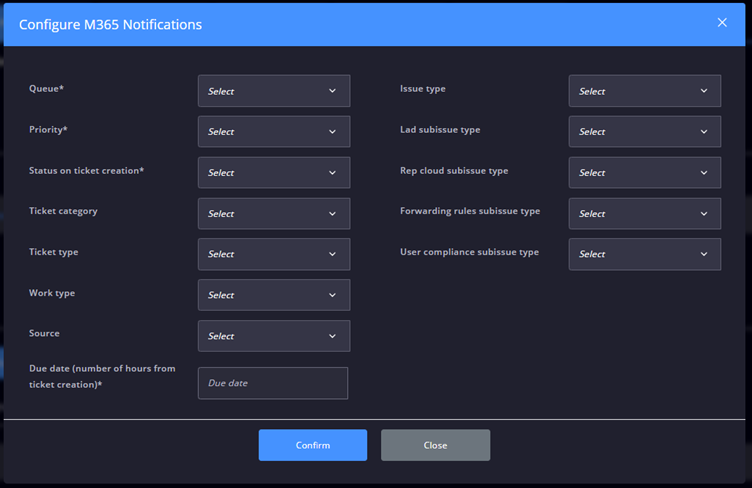
Mapping sections – Addition of a new “Configure M365 Notifications” button (Corp. Customers and Resellers):
- A new mapping section has been added: Configure M365 Notifications.
- Existing mapping buttons and sections have been renamed as follows:
- Configure Operational Notifications
- Configure Cyber Alerts
M365 Mapping Configuration Enhancements
A new Configure M365 Alerts section has been introduced, offering the same core configuration options available in existing mapping sections, such as board, ticket type, and status.
Where applicable, additional alert specific mapping fields are now supported, including:
- Sub types
- Sub issue types
- Other alert specific configuration options
These enhancements provide greater flexibility and alignment when mapping Microsoft 365 alerts to PSA workflows.
ConnectWise PSA
HaloPSA
Autotask
Overall, these enhancements significantly expand Heimdal’s PSA integration capabilities by enabling automated ticket creation for relevant Microsoft 365 User Security notifications, while offering increased flexibility and granular control over alert mapping and workflows. By improving versatility and automation across customer and reseller configurations, incident handling is streamlined, manual effort reduced and consistent response processes across environments are ensured.
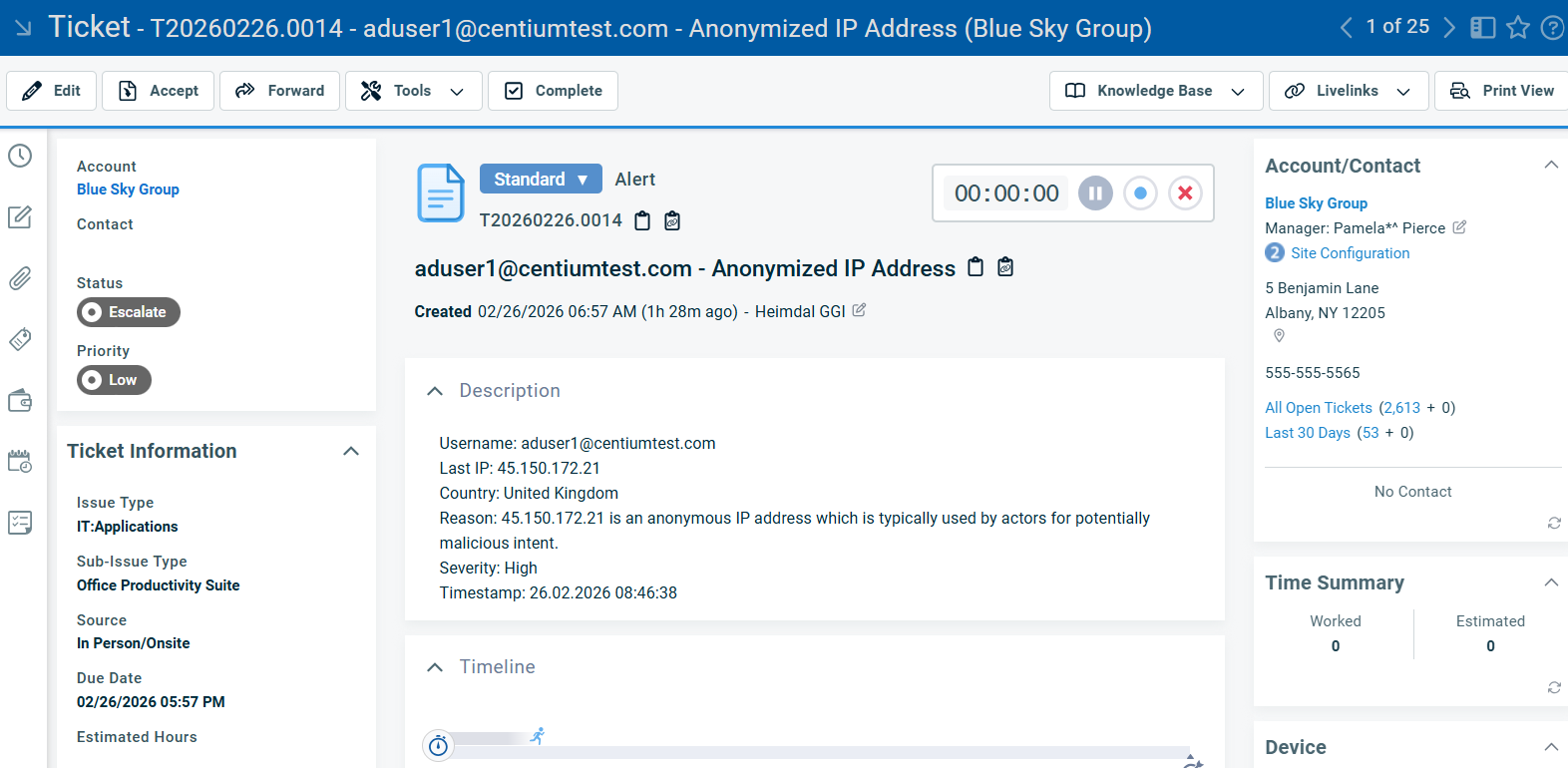
Below are a set of visual examples illustrating tickets generated in each of the three PSA platforms integrated with Heimdal.
Anonymized IP Address LAD alert - Autotask
Forwarding Rule notification – HaloPSA
MFA disabled notification – ConnectWise PSA
Customer Overview (Heimdal Partner Dashboard) page enhancements
The Customer Overview page for Distributors and Resellers has received minor but important improvements aimed at streamlining the partner experience. These improvements provide a clearer, single pane of glass view of licensing options across their corporate customers (end users), making license management and visibility more efficient.
A new search by End User (corporate customer/ reseller, depending on the level/ role of the logged in dashboard account – Reseller/ Distributor) field has been added to the page, enabling reseller and distributor accounts to more easily identify and triage their end users.
In addition to the visible UI improvements, backend optimizations were implemented to improve the performance and stability of the Customer Overview page. Several underlying queries were reworked to ensure more efficient data retrieval, resulting in faster load times, improved responsiveness when handling larger customer portfolios and a more reliable experience for distributor and reseller users.
Compliance Settings – Automatic session locking
As part of Heimdal’s strategic focus on strengthening compliance capabilities across the platform, this release further reinforces our commitment to helping organizations meet security and regulatory requirements.
This Heimdal RC release introduces a new set of compliance related settings, under Endpoint Settings -> click on a Windows OS GP -> General tab. A newly added Compliance Settings section now includes the Automatic Session Locking option, which is available for both new and existing Group Policies.
This feature enables IT administrators to enforce automatic screen locking after a defined period of user inactivity, supporting security best practices and compliance requirements such as the CIS 18 Controls recommendations for session timeouts and workstation locking.
When enabled, the endpoint session will automatically lock once the configured idle time is reached.
Upon enabling the option, a timeout slider becomes available, allowing administrators to define the maximum permitted inactivity period before the session is locked. The default timeout is set to 15 minutes and can be adjusted according to organizational security requirements, within a range of 1 to 30 minutes.
Note: Changes to the Automatic Session Locking setting (enablement or disablement) take effect only after a system restart or user sign-out.
Compliance Settings – Automatic Security Logs Retrieval
Building further on Heimdal’s compliance first direction, the following feature focuses on strengthening visibility and audit readiness.
By addressing key recommendations outlined in the CIS 18 Controls related to logging and monitoring, the Automatic Security Logs Retrieval feature (found under Endpoint Settings -> click on a Windows OS GP -> General tab, Compliance Settings) introduces an automated mechanism for collecting Windows Security Event Logs from endpoints.
When enabled, the Heimdal Agent retrieves the Security logs from the Windows Event Viewer on a daily basis and stores them for compliance and auditing purposes. This functionality supports CIS18 compliance requirements by ensuring consistent log collection and retention across all managed devices.
Note: Logs are collected automatically every 24 hours, and the retrieval process does not require any user interaction. If a device is offline or unavailable during a scheduled retrieval, the system retrieves the logs retroactively based on the timestamp of the last successful retrieval. This ensures that there are no gaps in log collection.
All retrieved logs are stored and made available for download, with a retention period of 90 days. These logs can be accessed from the Heimdal Dashboard under Unified Management -> Device Info -> select a Windows OS hostname -> UEM -> Logs -> Windows Event Viewer Logs.
Within the existing grid, a new “Type” column has been added, allowing dashboard users to easily distinguish between “Full Event Viewer Logs” and “Security Logs”.
Note: Manual, specific retrieval of Security logs is not supported. When the feature is enabled, log retrieval is performed exclusively through the automated process. Manual retrieval is available only for Full Event Viewer Logs, which can be requested through the Device Info section.
Heimdal Patch & Asset Management
OS (Windows) Updates – Per-category delay option for Windows Updates
Managing operating system updates effectively is essential for maintaining both security and operational stability. Organizations often need to deploy certain updates immediately (such as security fixes) while delaying others (such as feature updates) to allow for internal testing and validation.
The Delay per Update Category feature enhances the Windows Updates configuration by allowing administrators to define installation delays for individual update categories rather than relying solely on a global/ per GP delay.
The OS (Windows) Updates category selector now supports configuring installation delays for individual categories. This setting can be accessed by navigating to Endpoint Settings -> click on a Windows GP -> Patch & Assets -> Operating System Updates tab, under the Install Settings section.
To support this new functionality, update categories are displayed in a table format. Each category can be individually enabled and assigned a specific installation delay.
The delay dropdown menu allows IT administrators to configure the following values:
- 1 to 31 days
- Off – no delay applied (0 days)
Note: when Off is selected, updates in that category are installed immediately once they become available.
Also, it is important to note that the per-category delay takes precedence over the general delay set in “Delay update installation (days)”.
To ensure existing configurations remain unchanged, the system applies the following behavior when the feature is introduced.
For all existing Group Policies:
- if no global delay was configured previously, the category delay defaults to Off (0 days).
- previously selected update categories remain selected in the new table and their delay is automatically inherited from the value configured in “Delay update installation (days)”, if the following preconditions are met:
- the Group Policy is not deleted.
- the Group Policy is active.
- OS (Windows) Updates module is enabled in the GP.
- Delay update installation (days) is enabled.
- Automatically install updates by category is enabled
This guarantees that existing policies continue to function exactly as before the feature implementation.
Heimdal Privileges & App. Control
PEDM – Introduction of new filtering capabilities
To strengthen forensics and reporting capabilities within our Privilege Elevation and Delegation Management product module, this update introduces enhanced filtering and search functionality across several key views. New filters have been added to the Privileges & App Control -> PEDM -> Pending Approvals view (Elevation type and Status), while existing filters in the Privileges & App Control -> PEDM -> History view have been refined for greater accuracy and usability (the OS filtering option has been renamed from Devices to Devices OS, aligned with the naming used in the Pending approvals view, all elevation types are now enabled by default and an “All” filtering option has been introduced to simplify filtering).
In addition, Unified Management -> Device Info, Client Specifics (post clicking a hostname) now includes both filtering and search capabilities for the Privileges & App Control -> Privilege Elevation and Delegation Management tab, Pending Approvals (Elevation Type and Status filtering options + search capabilities based on Active username and Reason given) and History (Elevation Type filtering option + search capabilities based on Active username, Reason Given, Executed Process and Handled By) views, enabling faster investigations, improved traceability and more efficient analysis of approval-related activity.
Heimdal Email Protection
Email Security – Options to perform Email Deletion from M365 Inbox
We’re excited to announce a new feature in our Email Security solution that enables authorized users to delete emails directly from end users’ Microsoft 365 inboxes. The deletion options are available for Inbound emails having the Delivered status (the “Delete from ESEC” option is also available for Delivered status outbound emails).
Alongside the newly introduced options, the setup process for Microsoft 365 – related ESEC functionalities has been streamlined through the introduction of a single, unified Grant Consent configuration:
- existing consent configurations have been consolidated into one centralized setup.
- enables mailbox deletion actions in addition to existing M365-related Email Security capabilities.
- requires the Microsoft application permission: Mail.ReadWrite.
Once the required prerequisites are completed, namely configuring and synchronizing the organization’s Microsoft Entra Tenant ID, granting Unified Grant Consent from Network Settings -> Email Security and providing the required Microsoft application permission (Mail.ReadWrite), additional deletion actions become available.
These actions can be accessed from Email Protection -> Email Security -> Details -> Inbound view, within the “Select what action to take” drop down menu and include:
- Delete from Inbox – moves the email to Deleted Items and email remains preserved in cold storage (newly implemented action).
- Permanently Delete from Inbox – completely removes the email from Inbox, but preserves it in the cold storage (newly implemented action).
- Delete from ESEC / Delete from EFP repository (updated naming for clarity; previously referred to as Delete) – deletes the email from the ESEC/ EFP grid/ repository, does not impact the user’s Inbox, cold storage configuration is followed.
Alongside the newly introduced deletion actions, a new ”Delete Type” advanced filter drop-down has been added to help IT administrators quickly identify and analyze remediation actions across environments.
Available filter options include:
- All – displays all emails, regardless of deletion action.
- Inbox Delete – shows emails removed from user inboxes.
- Permanent Delete – displays emails permanently removed from mailboxes.
A new Audit Logs tab has been added within the email Details view, providing centralized visibility into actions performed on each email.
The Audit Logs tab records:
- the user who initiated the delete action.
- the delete type performed (Inbox Delete or Permanent Delete).
- the exact timestamp of the action execution.
Additionally, several investigation-related fields previously located in the Advanced tab have been consolidated into the new Audit Logs tab, for improved traceability:
- released by.
- initial status.
- initial responses from server.
Other improvements & fixes:
App Control - Pre-approved publishers allowlist available in Reporting mode
The Pre‑approved publishers allowlist functionality is now working in when using Reporting only Ruleset Mode with the default file action set to Block.
This enhancement improves visibility and reporting accuracy without enforcing blocking, ensuring consistent behavior across reporting workflows.
App Control - Download CSV option for Standard and Raw views
To further improve reporting consistency and forensic analysis capabilities, an option to export data as a CSV file has been added to Privileges & App Control -> Application Control -> Standard and Raw Data views.
This enhancement aligns the Application Control reporting experience with other product areas, enabling uniform data handling, easier correlation and more efficient offline analysis and auditing workflows.
Remote Access Protection – Automatic enforcement of RAP firewall rule on local GPO
When the RAP submodule is enabled, the Heimdal agent executes recurring validation cycles (every 30 minutes) and on BFA-triggered events to verify synchronization between RAP Heimdal GP configuration and the local GPO Firewall state. In cases where the RAP-defined rule is absent or not properly replicated, the Heimdal agent automatically applies it locally to ensure policy consistency and enforcement.
User Anomaly Detection - Brand new “User browsers” tab
The continuous evolution of the Threat Hunting & Action Center (TAC) User Space continues with the introduction of a new “User Browsers” view under the User Anomaly Detection space.
This new tab provides visibility into the browsers used by each Microsoft 365 user, along with usage/ popularity percentages, supporting improved behavioral analysis and anomaly detection.
The new page consists of a grid with the following columns:
- Username - the Microsoft 365 user, identified by their email address.
- Browser - the name of the browser used by the user.
- Popularity - the relative usage of the browser, displayed as a percentage bar.
- Successful logins - the total number of successful authentication events for the user on that specific browser.
When a grid entry is selected by ticking the checkbox next to a username, the “Select what action to take” drop-down becomes available, allowing IT administrators to perform the “Delete Browser” action (multiple selection is permitted).
The page support searching by username or browser, CSV export, sorting by the Username and Browser columns, as well as pagination with jump- to – page functionality.
Clicking on a username redirects to the “User Details” view, which displays a similar table focused on the selected user. In this view, the username column is omitted, and the grid lists only the browsers used by that specific user.
Remote Desktop - Addition of a “RD connect” floating action button in the Heimdal Dashboard
We’ve streamlined the process of initiating Remote Desktop connections via the Heimdal Remote Desktop for Windows application (available under Guide -> Download and Install). A new, dedicated “RD Connect” floating action button has been introduced and is now available across all Heimdal Dashboard pages, providing faster and more consistent access to remote connectivity to our users.
When clicked, the “RD Connect” button opens the “Connect to remote session” modal window. From this point onward, the connection flow remains unchanged and is identical to the existing path available under Products -> Remote Desktop -> Standard view, Connect button -> “Connect to remote session” option.
PXE - Enhancement related to the Network OS Deployment
This release introduces improvements to the service start up behavior for Network OS Deployment. Previously, the Heimdal OSDeployment service required all ISO images to be fully downloaded on the Network OS Deployment Server before the service could start.
With this update, the service can now start as soon as at least one ISO image has been downloaded, reducing setup time and improving overall usability.
Additional status and visibility improvements have been introduced for ISO image handling. While an ISO image is being downloaded on the Network OS Deployment Server, its status is shown as “Downloading”. Once the download is complete, the status is updated to “Completed”, supplementing the “old” generic “Pending” status, that is now displayed when a new ISO image was added to the Available OS Images grid.
To improve end user awareness and overall experience, a Heimdal Agent notification pop up is now displayed at the start of the image download process, informing end users that boot resources are being downloaded and that temporary increases in network usage may occur.
Heimdal API - Enrichment of the TAC – related API calls with M365 and External firewall
This release adds four new API endpoints, available under Guide -> Your Heimdal API Key, extending the Threat - hunting & Action Center (TAC) integrations for Microsoft 365 and External Firewall data:
- TAC M365 Notifications API – retrieves all TAC notifications generated by Microsoft 365 users.
- TAC M365 Risk Score API – returns the risk score associated with each Microsoft 365 user.
- TAC External Firewall Notifications API – retrieves all TAC notifications generated by External Firewall devices.
- TAC External Firewall Risk Score API – returns the risk score for each External Firewall device.