- Unified Management, Client Management – Scripting default repository.
- Cyber Essentials compliance report and dedicated dashboard view.
- Implementation of Email forwarding rules in User Anomaly Detection and User specifics views.
- External demo customer.
- Application Control – Default allowlist based on Publisher.
We would like to inform you that a new version of the Heimdal Production dashboard, 5.1.1, is now live.
Starting Friday, December 6th 2025, the Heimdal Production Agent will be available for download in the dashboard's "Guide" section under the "Download and Install" tab. It will be deployed on a roll-out basis over the course of the coming weeks.
Heimdal Dashboard
● Unified Management, Client Management – Scripting default repository
One year after making available the free of charge Scripting functionality, meant to streamline the management of your IT estate in an efficient and secure way, by allowing the execution and scheduling of custom scripts, we’re adding to the existing capabilities by providing a turnkey feature – the Heimdal Scripting Repository.
The Heimdal Repository contains a catalog of predefined, standardized and sanitized scripts available in PowerShell and BAT formats. These scripts are maintained to support a variety of operational and security use cases.
Scripts from the Heimdal Repository may be imported into the Personal Repository when required. Once imported, execution may occur under one of the following operational models:
- Scheduled or trigger-based execution: Scripts are deployed automatically based on predefined conditions.
- On-demand execution: Scripts are dispatched immediately to designated Endpoints.
The new view, having the following structure: Script Name, Script Description, Type, Timestamp and Action, is to be found under Unified Management (previously known as Unified Endpoint Management) -> Client Management -> Scripting.
Note: Access to scripts within the Heimdal Repository is governed by claim-based (ACLs) authorization:
- Viewing - any account assigned the “View scripting data” claim may browse and review available scripts.
- Importing - the ability to import scripts is restricted to user accounts that possess both “View” and “Edit” claims.
- Modification and Repository Management – only user accounts explicitly provisioned with the “Edit scripting Heimdal repository data” claim are authorized to import or modify scripts within the Heimdal Repository.
This layered control model ensures that only properly authorized users may access, import, or alter repository content, in alignment with organizational security and compliance requirements.
The Edit, Delete and Download icons (displayed in the above screenshot) and implicitly the functionalities behind them, are visible and restricted to internal-only access.
View script
Selecting the View option redirects the user to the Script Details page. This page provides full visibility into the script’s configuration, including:
- Defined variables.
- Script content.
- Title and description.
- Script type.
In accordance with access control policy, the Script Details page is designated as read-only. Users may review and copy script content for reference or operational use; however, no modifications can be performed within this interface.
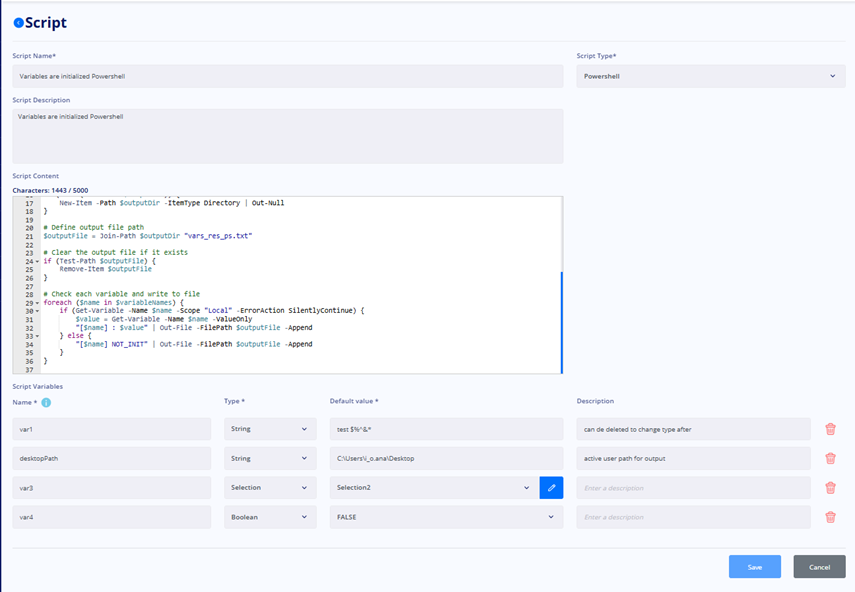
Import script
Users assigned the “Edit scripting Heimdal repository data” claim are authorized to import scripts from the Heimdal Repository into their Personal Repository.
To ensure traceability and enforce naming integrity:
- Imported scripts are automatically prefixed with “Heimdal-”, clearly designating their origin.
- Duplicate script names are strictly prohibited; the enforced naming convention prevents conflicts and ensures repository consistency.
This control mechanism both safeguards repository integrity and maintains clear differentiation between predefined Heimdal scripts and custom user-created scripts.
Post pressing the icon designated to import the script from the Heimdal repository to the Personal repository, the Heimdal dashboard user is prompted with an aknowledgement modal window.
The Personal Repository view (previously known as Repository) partially maintains its prior structure and functionality, serving as a dedicated workspace for user-created or imported scripts. On top of the previously available Actions, we’ve added a view script action which is very similar to the one from the Heimdal Repository (described earlier).
Also, the “Add new script” functionality has been greatly enhanced, with the addition in the dedicated modal window of a “Script type” selector (drop-down list), “Script content” text field and the option to define one or multiple variables.
Authorized users may modify existing scripts after creation or import from the Heimdal Repository. Editing functionality ensures that scripts can be maintained, updated, or adapted as operational and compliance requirements evolve. Please note that the Script Type and existing Variable Type are not editable once the Script is created/ imported.
When it comes to deleting scripts, Heimdal users may delete scripts from the Personal Repository. However, deletion is restricted for any script currently assigned to a Group Policy task. In such cases, the system enforces integrity by blocking the deletion and generating an error notification to the user.
The Download option enables users to securely export scripts in their respective formats: .PS1 for PowerShell or .BAT for batch files. This ensures compatibility with execution environments while maintaining repository integrity.
This structured control model ensures that all script lifecycle operations - adding, editing, deleting, and downloading - are strictly governed by access permissions and system safeguards.
A major addition to the previous version of Heimdal Scripting is the option to add one or multiple variables to the scripts.
The Script Variables feature allows authorized users to define dynamic parameters that can be reused across scripts, providing flexibility and reducing the need for hard-coded values. This functionality ensures that input data is validated and aligned with the intended operational purpose of the script and that scripts remain adaptable to different operational contexts while maintaining consistency and compliance.
Variables are defined by name, type, default value and description and can be added and/ or deleted.
Variables can be configured in one of four supported types:
- String – free text input for alphanumeric values.
- Boolean – logical value (TRUE or FALSE).
- Date – calendar-based input for selecting a specific date.
- Selection – predefined list of values from which the user selects the required option.
Besides the possibility to manage script variables from the Add Script modal window, the option has been also made available from the Add Task menu, found in the dedicated Group Policy area (Endpoint Settings -> Windows GPs -> General -> Scripting -> Add New Task -> Actions tab).
When creating a Task, Heimdal dashboard users can associate scripts stored in their Personal Repository. The below section outlines the behavior of the Actions dropdown, how variables are displayed and managed, and the impact of script-level changes on associated tasks.
Script Selection via Actions Dropdown
- The Actions dropdown presents only the scripts currently available in the user’s Personal Repository.
- To utilize a script from the Heimdal Repository, it must first be imported into the Personal Repository. Scripts not imported will not appear as selectable options.
When a PowerShell (.ps1) or Batch (.bat) script containing variables is selected from the “Specify what action to perform” drop - down list, all predefined variables associated with that script are automatically displayed in the UI and, while the Name, Type and Description fields are read-only (non-alterable), the Value may be adjusted to meet specific requirements of the task which is being configured.
Note: Variable values modified within the task configuration will not retroactively affect the script’s source file (changes to values are localized and do not persist in the script from the Personal Repository).
Concerning the on-demand scripts execution (Device Info and clients specifics) – allowing IT administrators to execute scripts on one or more endpoints immediately, without the need for task scheduling – variables behavior (if the source script is defined with variables) is the same as in the Create Task, GP one.
Note: On-demand scripts are executed under the System Context; .ps1 scripts execution is subject to the host system's PowerShell execution policies and to ensure successful execution, a “Bypass Execution Policy” checkbox is available, which, when enabled, allows the script to bypass all restrictions.
For additional, more granular details related to variables, execution context, requirements and validations etc., please consult the Support Knowledge Based documentation and/ or reach out to Customer Support.
● Cyber Essentials compliance report and dedicated dashboard view
Post the introduction of Cyber Essentials Compliant and Non-Compliant 3rd party patch management and Windows OS updates views, our Cyber Essentials compliance coverage became more extensive with the introduction of a dedicated report and dashboard view, which provide a unified outlook of your organization’s CE readiness, on both EDR (devices), as well as ITDR (users) fronts.
Starting with the 5.1.1 PROD release, a dedicated Devices/ Users compliance dashboard section (Unified Management) covering, for the moment, devices and users’ information in regard to the Cyber Essentials recommendations, is available. When navigating to it, the dashboard user can refer to a Devices view and to a User’s view.
Cyber Essentials Devices view
This view offers crisp visualization of endpoint cybersecurity CE compliance status. It displays key protection indicators, including Next-Gen Antivirus (NGAV), Firewall, 3rd party patch management and Admin Rights, showing whether each control is enabled and compliant.
This level of visibility helps you quickly identify potential vulnerabilities, ensure consistent protection across all devices, and maintain Cyber Essentials readiness.
For an endpoint to be considered compliant, all key security controls — Next-Gen Antivirus (NGAV), Firewall, Patching, and Admin Rights — must be properly enabled.
The view displays the current state of each control (enabled/ disabled) for every device, allowing administrators to quickly identify and address non-compliant systems. From this view, you can also see which Group Policy is assigned to each endpoint, helping you verify configuration sources and manage compliance more effectively.
Devices running macOS or Linux will have several areas marked as N/A (Not Applicable), as these operating systems do not support the same range of modules and integrations available for Windows-based devices. This behavior is expected and aligns with the platform’s current compatibility scope for Cyber Essentials compliance monitoring.
The view, like the majority of the Heimdal dashboard ones, provides search, filtering, sorting and download .csv options.
Cyber Essentials Users view
The Users view provides an overview of user-level Cyber Essentials norms adherence.
It displays the status of key security controls — Multi-Factor Authentication (MFA), Strong Passwords, and Password Expiration — indicating whether each control is enabled (true) or not (false).
This view helps administrators quickly identify users who are non-compliant and take appropriate actions to strengthen account security and maintain overall Cyber Essentials readiness.
The Users view in Cyber Compliance highlights accounts that are not compliant (the source of the info being the Threat – hunting & Action Center -> M365 Action Center -> User Compliance view), meaning they have at least one required security option disabled.
Note: user data visualization is subject to the M365 User Security module being licensed and to the individual settings related to Multi-Factor Authentication and Password compliance being enabled in Network Settings.
The search, filtering, sorting and download .csv options are similar to the ones from the Device view.
Besides the two earlier mentioned views, the Heimdal dashboard users can now generate a dedicated Cyber Essentials report. The Cyber Essentials report provides clear visibility into the cybersecurity posture of your organization.
It automatically analyzes all connected devices and user accounts to identify compliance levels with key Cyber Essentials controls, highlighting potential risks or deviations. This report helps you ensure continuous alignment with cybersecurity best practices, strengthen endpoint protection, and support audit readiness with actionable insights.
Similar to all other Heimdal Reports, the CE one can be generated on demand or scheduled, with the desired recurrence. Also, the rest of the report set-up and distribution flows are akin to that of the other Heimdal reports.
We are convinced that you will find the fresh views and report very useful, as they are continuously evaluating devices, users, and configurations against the core Cyber Essentials controls, assisting in determining which organizational assets meet the compliance recommendations and which warrant scrutiny and proactively contribution to a proactive security posture across your organization.
● Ability to uninstall the Heimdal agent “on demand”
This new option, meant to provide IT administrators with more flexibility in managing endpoints, has been added to the Device Info -> Standard view.
This functionality ensures a controlled, traceable, and silent removal process, directly integrated with the Server Commands and Device Info Notifications systems.
The “Uninstall Heimdal agent” action is now available in the “Select what action to take” drop - down list from the Device Info, Standard view.
Note: the action requires single hostname selection.
After applying the “Uninstall Heimdal agent” command, the dashboard user is prompted with a pop-up window requiring confirmation prior to the uninstall; once confirmed, an uninstall server command is generated and sent to the Heimdal Agent.
From a reporting/ logging standpoint the uninstall command is displayed in the “Server commands” view, along with its current status. The Heimdal dashboard users can choose to cancel the command while it is still in pending status.
Once the server message/ command is executed successfully, the resolution will change to Completed.
Also, a new Command type (Uninstall Heimdal agent) has been added to the “Filters” area of the Server commands view.
● Brand new “GP Switches” dashboard view and real-time Entra ID/ AAD groups check
With our continuous aim to provide sharper, visible, traceable and unified reporting/ forensics and enhanced user experience, a new “GP Switches” (Device Info) view has been added to the Heimdal dashboard. This view centralizes information about Group Policy assignment modifications applied to active devices, making it easier to monitor, filter, and export relevant data.
The ”GP Switches” grid lists all active hostnames where a policy shift has occurred and has the following structure:
- Hostname – the device identifier where the policy switch was recorded.
- Username – the account that triggered or was associated with the change.
- Current GP – the policy currently applied on the device.
- Selected GP – the policy assigned to the device.
- Previous GP – the policy in place before the change occurred.
- Last GP Switch – a timestamp indicating the last time the policy was switched.
- Last Seen – a timestamp indicating the last time the device reported activity.
The GP Switches grid offers multiple ways of managing the data displayed:
- Sorting by any of the grid’s columns (e.g., hostname, username, …).
-
Filtering by key attributes, including:
• Machine type.
• Device OS.
• Chassis type.
• Export to CSV – administrators can download the dataset as a CSV file.
On top of the earlier mentioned feature, we’ve also implemented a “Check AAD Groups” option, which can be found in the Device Info tab, client specifics view (post clicking a hostname).
Post hitting the “Check AAD Groups” button, a modal window, displaying real-time Microsoft EntraID/ AAD groups relevant info, is showcased.
Heimdal Patch & Asset Management
● Option to uninstall a single 3rd party software from Patch & Assets
To enhance software lifecycle management and provide administrators with greater control, a new Uninstall action has been made available in the Patch & Asset Management -> 3rd Party Patch Management -> Windows OS -> Standard view. This feature allows software uninstall operations to be initiated directly from status grids, with a clear confirmation flow and full traceability in server commands.
The action, similar to the already available Device Info -> Standard view one, is now part of the “Select what action to take” drop-down list found in all sub views of the Standard View (except for the Uninstalled sub view).
Note: the action can be performed on multiple entries.
Post applying the uninstall command, a confirmation pop-up window, listing the selected application name(s) and associated hostname(s), is shown, allowing the dashboard user to verify exactly what will be uninstalled.
After confirming the action, an uninstall server command is created and sent to the agent(s) responsible for the respective host(s). The uninstall operation then starts according to the Heimdal agent’s processing.
All uninstall actions are logged and visible in the Device Info -> Server Commands page. Each uninstall command can be monitored in real time, providing transparency and traceability.
Ending undesired 3rd party software uninstall commands can be performed by applying the Cancel option from the corresponding drop-down list.
Heimdal Privileges & App. Control
● PEDM – Tray tools enhancements
Another user experience improvement, in the Privilege Elevation and Delegation Management sub module, is now available. It consists of a new method for the quick addition of a predefined number of tray tools.
In this regard, a new drop-down selector "Select Tray Tools To Add" has been added under Endpoint Settings -> Windows GPs -> Privileges & App Control -> Privilege Elevation and Delegation Management tab, Additional Setting area, Customize Tools. This dropdown contains a number of commonly used applications from the System32 folder:
- Add or Remove Programs – appwiz.cpl
- Allow Remote Access – SystemPropertiesRemote.exe
- Command Prompt – cmd.exe
- Computer Management – compmgmgt.msc
- Device Manager – devmgmt.msc
- Network Adapter Settings – ncpa.cpl
- Regedit – regedit.exe
- Services – services.msc
- Turn Windows Features On or Off – OptionalFeatures.exe
- View Event Logs – eventvwr.msc
- Windows Powershell – powershell.exe
Clicking an item from the drop-down, will add an entry to the Custom Tray Tools grid and, at the same time, remove the item from the dropdown.
If the grid already contains any tray tool which matches the friendly name or path of any item from the drop-down, the item will be removed from the drop-down.
If any item that corresponds to an item in the drop-down, is removed from the grid, it will be added again to the dropdown.
For a friendlier and more efficient UI experience, we have also added the possibility to change the order of items from the grid, by dragging them, which will subsequently be reflected in the Agent UI, dictating the order of the Tools from the tray icon.
Considering that the “Add or Remove Programs” and “Network Adapter Settings” apps prompt the user for consent whenever they try to do an operation in the apps, we have added two in-house made utils in order to bypass this limitation.
The Heimdal.AddRemovePrograms util/ app. displays a list of applications that can be uninstalled by the user. The same applications that can be found in the Windows Control Panel > Programs and Features. Selecting an application and hitting Uninstall will run the uninstall command (that the application configures on installation) that is being retrieved from the Registry.
Note: the in-house developed apps/ utils can only be started by PEDM.
The Heimdal.NetworkSettings app. retrieves the Internet and Wireless adapters that can be found in the Windows Control Panel > Network and Internet > Network Connections and allows the user to configure the IPv4 settings for each one of them. The util behaves just like the main Windows IPv4 Properties window, allowing the user to configure an IP, Subnet mask, Default Gateway and DNS servers and gives the possibility to enable and disable adapters.
The adapters can be cycled through the configurable adapters via a drop-down menu. Selecting an adapter will update the fields and show corresponding IPs.
Clicking Save will save the settings. Cancel will close the util without saving.
● Application Control – Default allowlist based on Publisher
Making IT administrators’ lives easier is one of Heimdal’s utmost priorities. The brand-new Default allowlist based on publisher does just that, not to mention that, with this feature, App Control is offering a very smooth product onboarding, considering the sophistication and complexity of the product submodule itself.
Starting with the 5.1.1 PROD release, when navigating to Endpoint Settings -> Windows GPs -> Privileges & App Control, General Settings area, the Heimdal dashboard user will discover a new checkbox “Pre-approved publishers allowlist” (default faded/ unclickable and disabled).
In order to be able to manage (enable/ disable) the feature, settings need to be configured to Enabled Ruleset Mode and Default file action needs to be set to Block.
Note: the full publishers list is default collapsed and can be expanded from the corresponding icon.
The grid displaying the Full pre-approved publishers allowlist contains an “Action” column where a “Block” button is available. If the button (s) corresponding to the publisher (s) is/ are clicked, an/ multiple individual block rule (s), for that/ those specific publisher (s), will be created – in case the user dashboard user confirms the action in the following modal:
Note: the Full pre-approved publishers allowlist permits multi selection/ selection of all publishers included in it.
Bear in mind that all rules created using the pre-approved publishers grid will always have the highest priority in the Application Control Rules grid. For example, if at a certain point in time, the highest priority is 200, the first rule created from the publishers’ grid will have priority 201. The same principle applies when selecting multiple publishers, each rule will have the biggest existing priority + 1 (201, 202, 203 etc.).
In order to avoid creation of duplicated App Control rules (either from the publishers list or manually, by users), rows containing publishers who fall under the aforementioned situation, will be highlighted with a blue vertical line and the checkboxes and action buttons will be disabled.
Other improvements & fixes
● External demo customer
Starting with the 5.1.1 PROD release, we offer our resellers access to a fully functional demo customer environment for our unified cybersecurity platform. This resource is designed to help you conduct compelling and tailored demonstrations that directly address the pain points of your prospective clients.
Resellers can showcase the platform's robust features, such as threat detection, identity management, and automated response capabilities, using a realistic, pre-configured data set.
This controlled sandbox environment allows you to highlight the tangible benefits of our solution, build trust by showing its effectiveness in action, and ultimately accelerate the sales cycle.
In order to be able to use the Demo Customer functionality, reseller type dashboard accounts need to access the Admin section of the Heimdal dashboard and create/ update a corp. customer, in order to specifically designate it for this purpose and enable, in the Licensing Options the “External Demo Customer” check box.
Note: a maximum of one demo corp. customer per reseller entity can be created.
Once enablement completed, that environment (the corp. customer needs to be impersonated by the reseller accounts) will be automatically populated with mock data (refreshed on a weekly basis) for the Heimdal modules that are under the reseller’s product portfolio, thus providing the opportunity to assess the products and conduct versatile Heimdal dashboard demos.
● Enrichment of M365 User specifics view with the User Compliance details
Small, yet powerful forensics and user experience enhancement, it consists of the addition, in the M365 User specifics view (clicking on a user in M365 homepage or M365 -> Action Center -> Notifications tab) of the User compliance data: Multi – factor authentication, Strong Password and Password Expiration statuses.
● Implementation of Email forwarding rules in User Anomaly Detection and User specifics views
This brand new ITDR forensics-relevant feature inspects M365 users’ mailboxes to detect the presence of any configured email forwarding or redirection rules applied to inbound messages.
The feature is part of the M365 User Security module and becomes active automatically when the M365 license is enabled within the Network Settings.
A dedicated view called “Forwarding Rules” is to be found in the Product -> Threat – hunting & Action Center -> User Anomaly Detection (previously denominated as Login Anomaly Detection) and contains a grid with the following details: Username, Rule Name, Forward to, Forward as attachment to, Redirect to, Details and Status.
Note: although the view displays all detected mailbox rules (forwarding and redirection), only the forwarding rules generate TAC M365 notifications and contribute to the user risk score, as these are considered to potentially generate cybersecurity vulnerabilities.
The Heimdal dashboard user can get granular details about the rule by clicking the Expand button from the Details column and this fine-grained data will be displayed in an overlaying modal window.
The view accommodates searching, sorting & filtering.
The actions that a Heimdal dashboard user can perform on the Forwarding rules entries are: Acknowledge, Delete and/ or Dismiss.
The username entry is clickable and redirects the dashboard user to a dedicated Forwarding rules user specifics tab, whose grid has the same structure as the main grid, except for the Username column (as the Forwarding rules are pre-filtered on the clicked username). Filtering, sorting and searching are also applicable in this view.
The TAC M365 User Security widget has been enriched to visually display the risk level generated by Forwarding rules.
The Forwarding rules info was also added to the M365 User Security Homepage (dedicated icon and filtering by number of entries option available) and in the Action Center (Aggregated Notifications and Notifications views, with dedicated actions and filtering options).
Last, but not least, the M365 User specifics view (post clicking a username) now contains information related to the Forwarding rules, in both visual (spider Risk chart) and textual formats.
● M365 User Security - Option to Block user login based on geo location
Another ITDR preventive measure has been implemented in the M365 User Security tab from Network Settings, namely a blocklist at country level, which can impede users from specified countries from logging in.
A grid is provided, where IT admins can add the countries, they wish to block the login for. The status column showcases if the country is missing or not from the Microsoft EntraID Conditional Access Policy.
Besides the Synced/ Not synced statuses, there is also a Warning status, corresponding to the scenario in which a location is present in the EntraID Conditional Access Policy, hence showcased in the grid, but it was not added through the Heimdal Dashboard.
When a country is added (selected from the drop-down list) for the first time, updating/ saving the Network Settings will automatically create a new location in Azure, under Conditional Access > Named locations, named Heimdal | M365 Geoblocking countries list.
On the end user side, if the country they are trying to log in from is found on the blocked countries’ list, the outcome of the sign-in attempt will be a pop-up window stating why the attempt cannot be completed.
● Threat-hunting & Action Center M365 User security risk score refinement
Effective with this release, we’ve implemented an M365 User security risk score worth noting enhancement, meant to better reflect the potential impact of user activity: the risk score now incorporates user types, meaning that we apply a higher weight to the risk score of admin. Users given their elevated access and potential security impact.
● Enhancement of OS (Windows) Updates Limit bandwidth for downloads feature
The bandwidth configuration for Windows Updates (maximum foreground and background download bandwidth in kilobytes/ second that the device can use across all concurrent download activities) has been updated from Megabytes to Kilobytes. The default limit, which previously was set to 5 MB is now applied as its equivalent value in KB.